You don't need to know what an agent is to use one
Two things matter, context and tools. Here's how to walk yourself from a one-shot prompt to a scheduled task that runs your morning, using a kid's school inbox and tomorrow's calendar.

I was on a panel recently for the New York Public Library, in partnership with the Women TechExchange, on AI agents. About thirty to forty people in the room, a rainy Saturday morning in Staten Island, ranging from never-touched-this to running-a-business-on-it. The last question I got was what I learned while preparing my demo. I told them how surprised I was at how far the tooling has come for non-engineers.
I normally work in the terminal. (It's the black screen with text and words scrolling by.) My setup is something I've cobbled together over months and months, as my needs and the tooling have changed. It's a lot to walk someone through who is just getting started.
So for the demo, I picked up Claude Cowork. You'll find it in the Claude desktop app. Think of it as the version for people who aren't writing code but still want to connect Claude to local files and tools.
That part I had read about and expected. But it also let me schedule jobs and dispatch them from my phone. Those are agent loops with push-button setup. That's really nice.
Strip away the buttons and an agent loop is two things, context and tools. Context is what it knows about you and your situation. Tools are what it can read, write, or run on your behalf. Everything else is plumbing.
That's what I walked the room through. The habit is noticing what you wish were easier and doing one thing about it.
Start with the smallest possible loop
Open Claude or ChatGPT. Find one annoying piece of reading you have to do. The example I used in my demo was school emails. (I generated fakes for the demo, of course.) My kid's school sends a weekly bulletin that covers every grade from preschool through eighth, plus athletics, plus the play, plus tuition reminders. My kid is in one slice of that. Most of it doesn't apply to us. But I have to read it anyway, because the part that applies to us is buried in the middle.
So I drag two of those emails onto the Claude window. Then I type something close to this:
My child is a sixth grader. They are in the middle school play and they love watching basketball. Look at these emails and give me the information and dates that I need to stay on top of as well as any questions I need to ask.
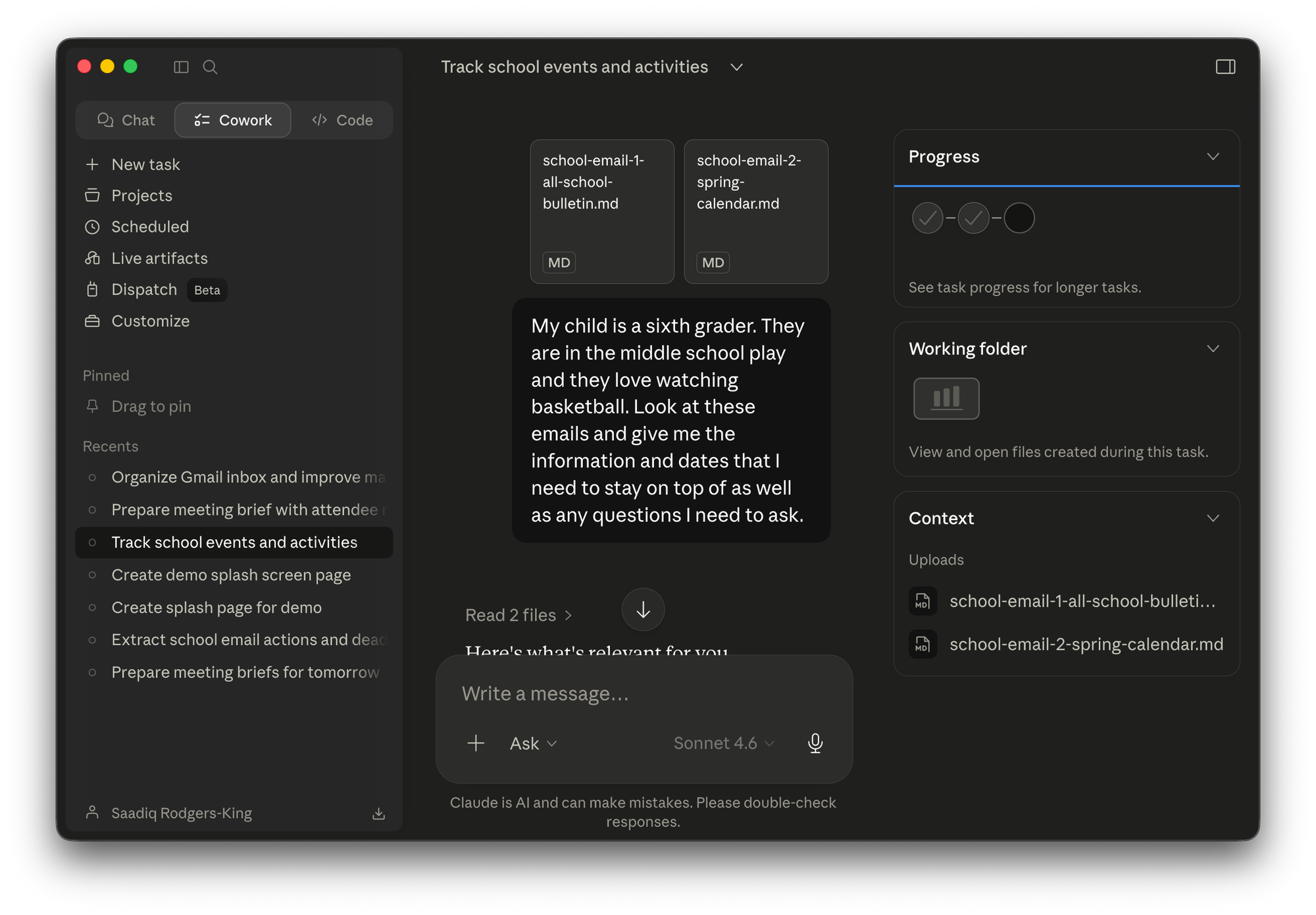
What comes back is a tight, targeted summary. The Mohonk overnight forms are due Wednesday. Play dress rehearsal is May 13. Basketball semifinal is Tuesday at home. The Knicks educational game is Saturday May 9. Things that depend on me knowing more about my kid (is he in chorus? does he need a costume?) get flagged as questions, not pretended-to answers.
Notice what I gave the model. Two emails and two sentences about my kid. That's the context. Without those two sentences, the same prompt produces a generic summary that collapses information and likely obscures details that are important to me. With them, it gives me a personal action list.
Don't paste a wall of text in, ask "summarize this," and then feel let down by the result. The result is mediocre because the inputs are mediocre. The model didn't know who you were, what you cared about, or what you were going to do with the answer. Tell it. Be specific. Pretend you're handing the email to a smart friend who doesn't know your family. What would you say?
As you do this, you refine the prompt. Maybe you save it. You keep refining until you like the outputs and want it to happen without exporting emails or copy-pasting it each time.
A worked example, in real software
Let me walk you through what a next step looks like in practice but with more of the loop handed over. I'll use Cowork for this because that's what I demoed at the library. The same logic applies to any other tool with comparable wiring. The product names will rotate. The shape won't.
I want to show you something I actually use every day rather than something I built for a demo. Here's how I get a brief on every meeting in tomorrow's calendar, dropped in my inbox at 6:30 AM, every weekday.
Step 1: connect the inputs
In Cowork, there's a panel called Connectors. I clicked Gmail and signed in. I clicked Google Calendar and signed in. Both took about a minute. Cowork now has read access to both, scoped to the account I authorized.
This is the context-and-tools thing again, in software form. Connecting Gmail is a context move (Cowork can now read what's in my inbox when it's relevant to a task). Connecting Calendar is both (it can read tomorrow's schedule, and it can write events back if I let it).
A privacy note, since people ask. Read access is a smaller decision than write access. I'm comfortable letting Claude read my inbox to do a one-shot research job. I'd think harder about letting it send email on my behalf. Start with read-only and earn your way up. That's a totally reasonable posture.
Step 2: write the prompt once
Here's a prompt you could use, exactly as written:
Look at my Google Calendar for tomorrow. For every meeting, do the following. One, identify everyone else invited. Two, search my Gmail for the meeting title, the attendees' names, and their company names so you can get context on what this meeting is about and why it's happening. Three, do a web search on each attendee and their company so I know who I'm talking to. Four, write a concise brief for each meeting. Five to ten bullets per meeting, covering who, what, context from my email, and anything useful from the web. Put all the briefs in one document. Email that document to me when you're done.
The prompt is only this structured because it was in a script I refined for the demo. Just start wherever you can. This works because I'm describing the job as if to an intern who has never done it before.
Step 3: let it run, then read
Cowork executes the plan tool by tool. You can watch it. Pulling tomorrow's calendar. Searching email for people in the meeting. Web-searching the companies. It takes a couple of minutes. When it's done, I have a document with one brief per meeting and an email in my inbox containing the document.
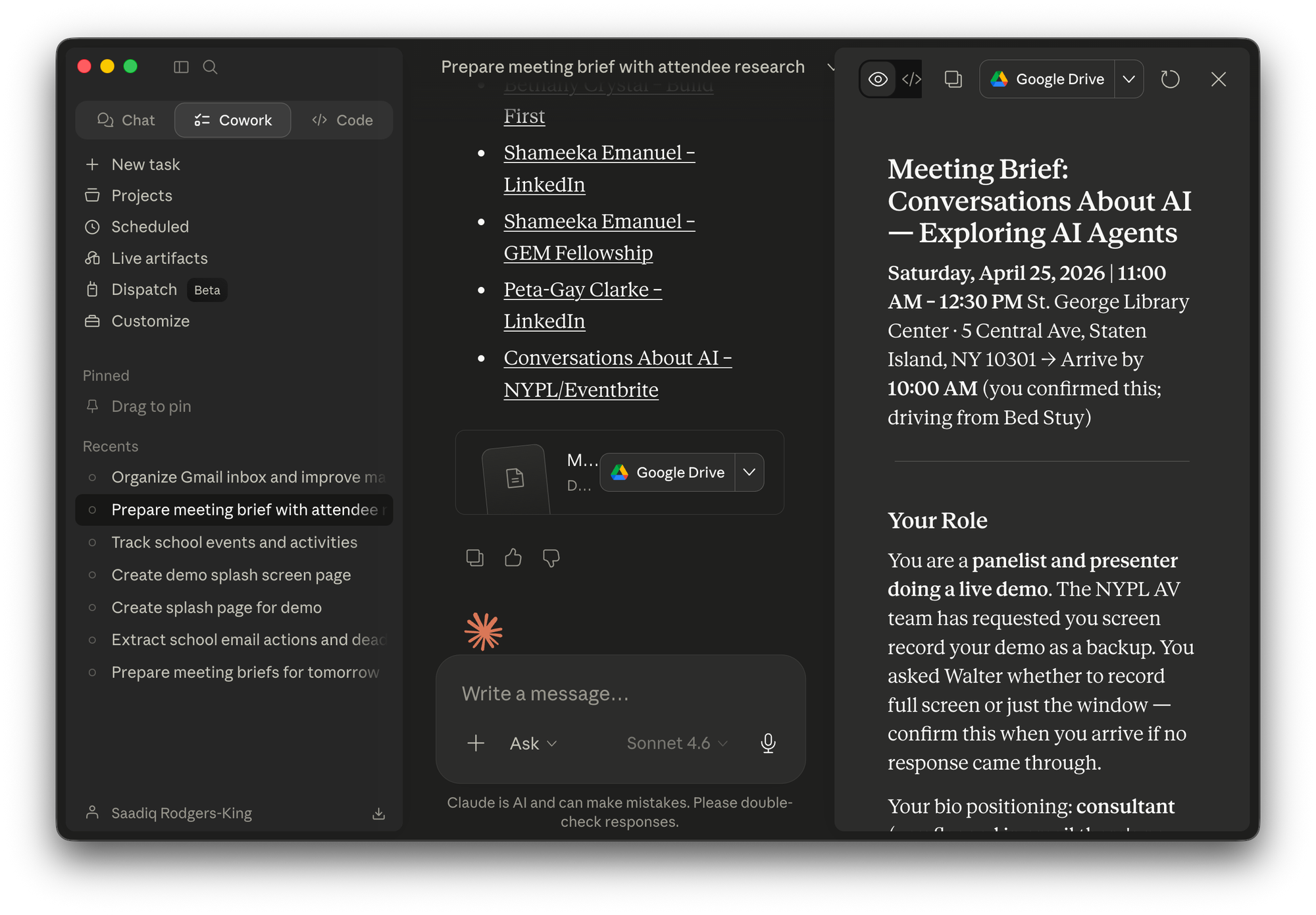
The first time you watch this, the thing that hits you is not "wow, AI." It's "wait, this is the work I would have spent thirty minutes on tomorrow morning, and it's done." Or more honestly, the work I'd have meant to do and not gotten to. The kind of prep that makes a meeting better but doesn't make the day's priority list. You do it for the big meeting. Not across the board. Reclaim that time. Use it on something only you can do.
But also refine the output. What's missing? What's there that doesn't need to be? Is this meant to be a full dossier you page through? Or do you prefer bullet points you scan fifteen minutes before the meeting? Give it feedback. Refine what you are asking for. Make the process what you need it to be.
Step 4: schedule it
Once you have something you like and you want to repeat it, Cowork has a panel called Scheduled Tasks. I added the same prompt as a daily recurring job, set for 6:30 AM. That's the move. The whole reason this stops being a one-shot and becomes an agent is that I built it once and now it runs without me, every weekday morning, before I'm even up.
That's it. A couple steps. None of them are technical. None of them require code. The skill being built isn't a coding skill. It's the muscle of describing a task clearly, iterating on the outputs and noticing the seam where you can hand off the next chunk.
Where you can take this
My version is basically that with some tweaks, grown into a couple of layers over time. It reviews every active client and everyone in my sales pipeline. It pulls from Slack, email, Granola meeting transcripts, and my calendars. It updates my project and client files, then extracts the things I need for the day into documents in my Obsidian vault that I read at my desk or on my phone.
Cowork's built-in connectors are the easiest starting point, but they have limits. You can only wire up one Google Workspace account at a time, and not every service you use will have a connector. As your needs outgrow the built-ins, you add tools yourself. For Slack, I use a CLI. For Google Workspace across multiple accounts, another CLI with separate configs per inbox. For Granola, an Obsidian sync plugin that drops new transcripts into my vault as markdown.
A tool is just a built-in connector, an MCP server, an API, or a CLI. Same job, different shape. Each one gives the model the ability to read, write, or act somewhere it couldn't before.
It takes care and feeding.
What to take from this
Pick one thing this week. Something tedious that you do over and over. Open Claude or ChatGPT. Don't try to automate it yet. Just do it once with the AI, by hand, the way I did with the school emails. Drag in the inputs. Type three sentences of context about your situation. Ask for what you actually want.
If the result is useful, do it again next week. The third or fourth time you do it, you'll start to notice the parts that grate. The dragging. The retyping. The copying into your calendar. Each grate is a signal of where to upgrade next.
That's the entire path. Manual loop, then better context, then better tools, then schedule it. By the time you're done, you've got something most people would call an agent and you got there without ever having to define the word.